The submittal activity screen is laid out as follows,
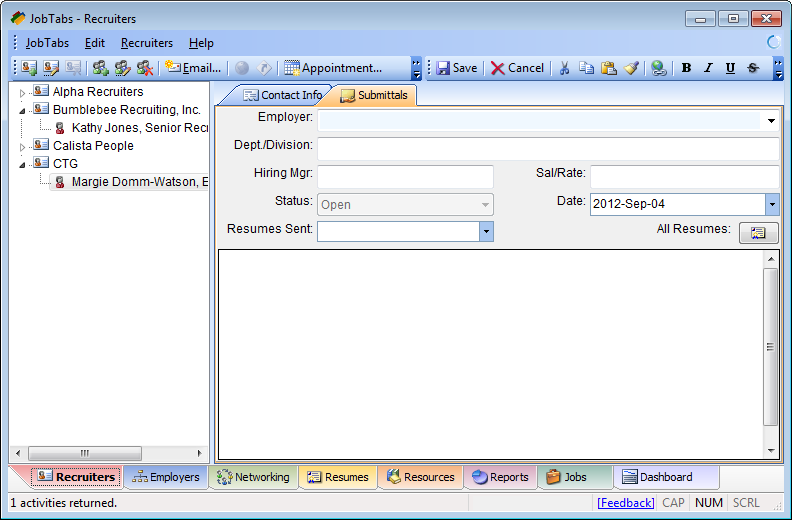
Note the following,
- The attachment icons have been removed from the toolbar. Only resumes can be referenced in a submittal and that is done using the Resume Sent drop down box.
- The Client is the employer receiving your resume. If the employer doesn't exist in the database already, it will be added. You will have to refresh
 the employer tree afterwards to see the addition.
The only required field is the employer receiving your resume. The other fields serve as a reminder to obtain this information if you can as well as allowing you to focus on key fields when you are generating reports. Document as much detail as you can about the opportunity, the team, the environment, in the large, unlabeled free form box at the bottom of the form. Each time you learn something new about the specific position, edit the submittal and add it to the existing notes. Once you save a new submittal you will not be able to change the employer. If you indicated the wrong employer you will have to delete the existing submittal and create a new submittal.
Of particular importance is the resume that is actually being provided to the employer. To prevent any entry errors the only resumes you can choose from are the resumes you have already sent that entity. They are in the Resume Sent dropdown box and are listed in the order in which you sent them. If you do not see a resume you sent a recruiter or networking contact, create a normal activity and attach the resume to it. Then go back to the submittal by editing it and select the resume.
Submittals are either Open or Closed. All new submittals are automatically set to Open. Upon getting an offer or being informed that you will not be receiving an offer the submittal should be closed. Upon being closed, it is simply an open game again. Should you be availed of another opportunity with that employer, you should do everything you can to qualify yourself for the new opportunity and get your resume in front of the hiring manager. Upon closing the submittal, the notes pertaining to the open submittal will be temporarily cleared so that you can add notes pertaining to the closing of the opportunity. You can toggle back and forth between your opening and closing notes by simply changing the status of the submittal.
 |
If you change a submittal from Closed to Open and then save it, your Closed notes will be deleted. |
In order to close a submittal you will need to edit the activity to change the status. Submittals are edited like any other activity. Either through the edit activity icon  or by double-clicking an activity in the activity list. The date will be set to the current date and the notes will be cleared. Upon saving the closed submittal, the submittal will show both open and closed notes and their respective dates such as,
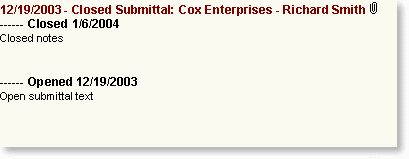
If you didn't get the offer, document why another candidate was selected or why you were passed over. If you begin to see a pattern you will have an excellent guideline moving forward to make improvements in your job searching / interviewing skills. These notes can also serve as great advice on what your networking contacts can do to avoid being passed over if the manager opens another requisition.
While submittals are unique, they are still activities and will be listed with all other activities normally. Activities that are open will be listed in caps with the client company and the manager's name as shown below,
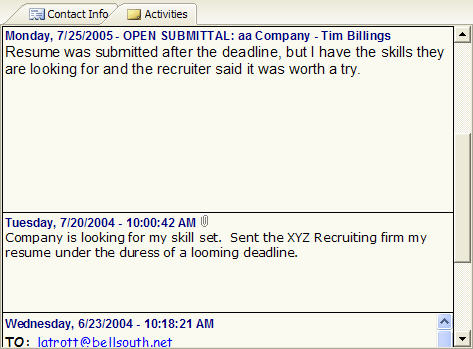
Submittals that are closed will no longer have their caps set.
© 2005 - 2012 by JobTabs, LLC. All rights reserved.